Appearance
Getting Started
This section will cover the minimal basics of using the Music Bingo app
Logging In
Music Bingo uses passwordless authentication. This works by either texting or emailing a 6-digit code that will be used to complete the login.
REQUIRES INTERNET
The login process requires the Music Bingo device to have an internet connection
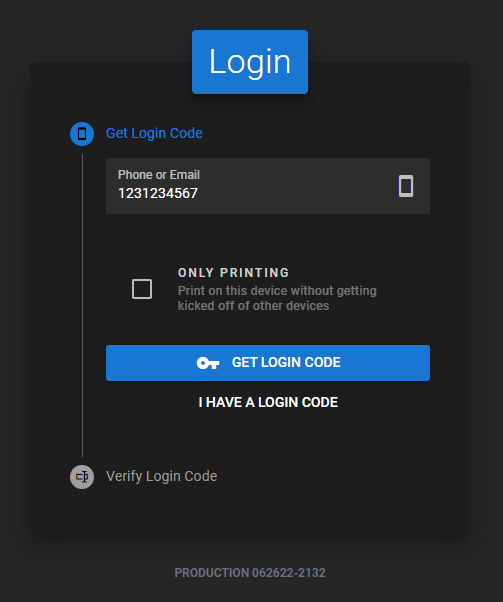
Step 1: Enter phone number or email address
Enter the phone number or email address for your account into textbox and press "GET LOGIN CODE" button.
Step 2: Enter 6-digit code
To complete the login process, enter the 6-digit code that was sent to you via text message or email and press "LOGIN" button.
LOGIN CODE EXPIRES IN 3 MINUTES
If it expires, you will need to repeat step 1.
LOGIN CODE NOT RECEIVED
If you are unsuccessful in receiving a code through text or email, reach out to an administrator to have them generate a login code for you.
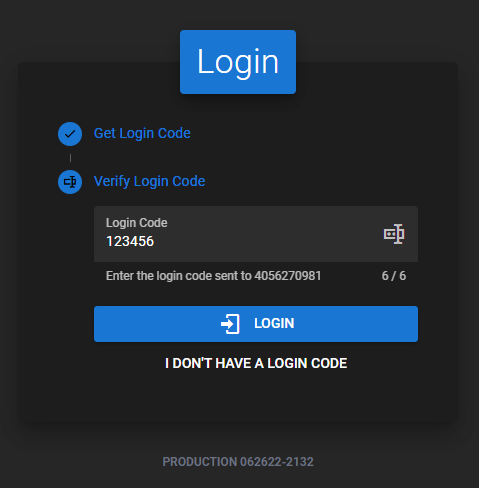
You should be logged into the Music Bingo app.
Starting a round
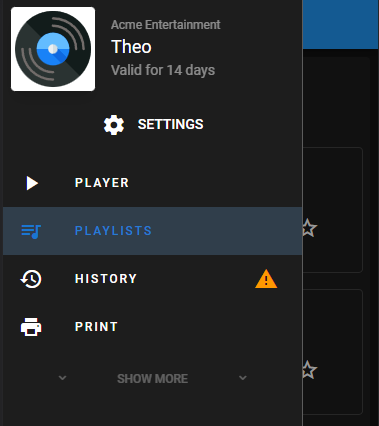
Step 1: Go to playlists
Select "Playlists" from the sidebar menu.
Step 2: Choose a playlist
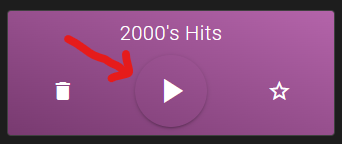
Find the playlist that matches the sheets that were printed and press the play icon in the center of the playlist tile.
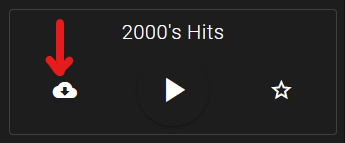
DOWNLOAD THE PLAYLIST
Relying on an internet connection can cause interruptions during playback. For the best experience, download the playlist locally before playing. When download is complete, the playlist tile will be colored as shown below.
Step 3: Start the round
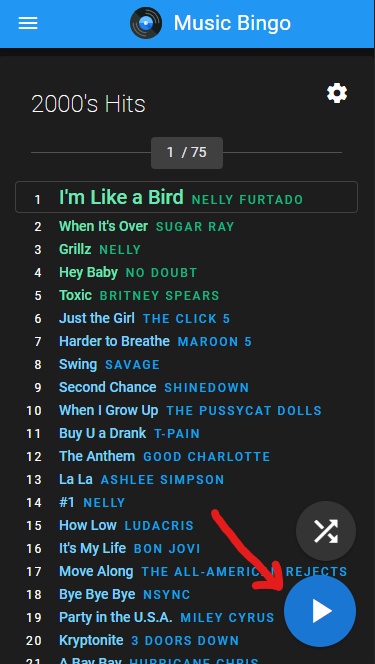
When you are ready to begin the round, press the play icon at the bottom-right corner of the screen.
Verifying a winner
Scanning the QR code with the app will reveal all the bingo tiles that have been played along with the order. This design gives the flexibility to invent any win pattern you can imagine. At the end of the round, you can visually compare the printed sheet with the app to verify that the player has won the round.
SCANNING IS OPTIONAL
Scanning the QR code is not a required step. It's simply a tool to make the verification process convenient for the host.
REQUIRES CAMERA ACCESS
This feature will only work if the device has a camera. The user will need to grant permission to use the camera if asked.
Step 1: Pause the round
When someone has yelled BINGO! Pause the game. At this time it might be helpful to inform your audience that someone thinks they're a winner. Have them bring their sheet to you so that you can visibly check that the tiles they've colored match the win pattern.
In the example below, we can see that this player claims to have won with 5 in a row on the left side. Let's scan the QR code and see if those 5 tracks have played.

Step 2: Scan the sheet
With the game paused, the QR code button should be visible. Press the QR code icon. A dialog will popup and soon after you should see what the camera sees. Focus the camera at the QR code visible on the printed sheet. If the camera is able to auto-focus to give a clear image of the QR code, it should scan successfully and show the result of what has played.
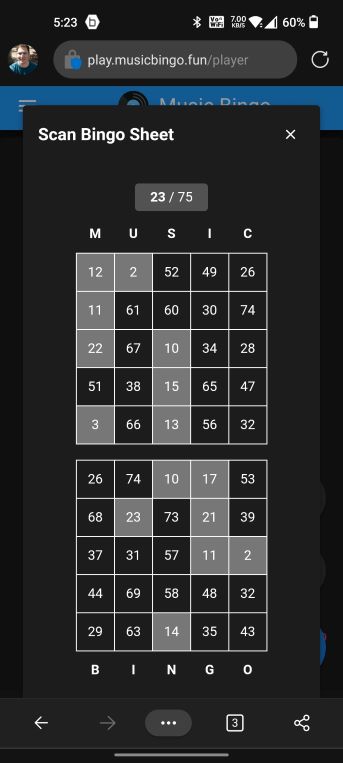
The result of the scan lets us visually see that the player hasn't won. They're missing a track (track 51 on the playlist). We're only on track 23 of this round so it'll be a while (28 songs away) before it plays. Send them back to their seat to cry - the show goes on!
Step 3: Play again!
When a winner has finally won, it's typical to switch to some intermission music while the next round is prepared. When ready, start another round.